
For additional guidance, check out our community articles detailing the process of migrating from your current platform to Carbonio CE.
For enterprise-level requirements and advanced features, consider checking out Zextras Carbonio – the all-in-one private digital workplace designed for digital sovereignty trusted by the public sector, telcos, and regulated industries.
In Zimbra, you can export your account data in order to save them in your computer or other locations as backup or moving them to other accounts or programs. The original data that has been copied into your computer remains safe and won’t be removed from your account. Account data will be saved as .tgz file on your computer. Contact folders and calendar folders can be also exported individually. In that case, they are saved respectively as .csv and .ics files. These files can be easily imported into your account whenever you need them.
These items can be exported and imported:
- Account data in
.tgzformat. Account data can include folders of the following applications,- Mail (including attachments),
- Contacts,
- Calendar,
- Tasks,
- Briefcase.
- Calendars in
.icsformat - Contacts in
.csvformat
Exporting Account Data in Zimbra
You can export your account data in a .tgz file through the Zimbra web client as follows,
- Log in to your Zimbra web client,
- Go to the Preferences tab,
- Go to Import / Export from the left pane,
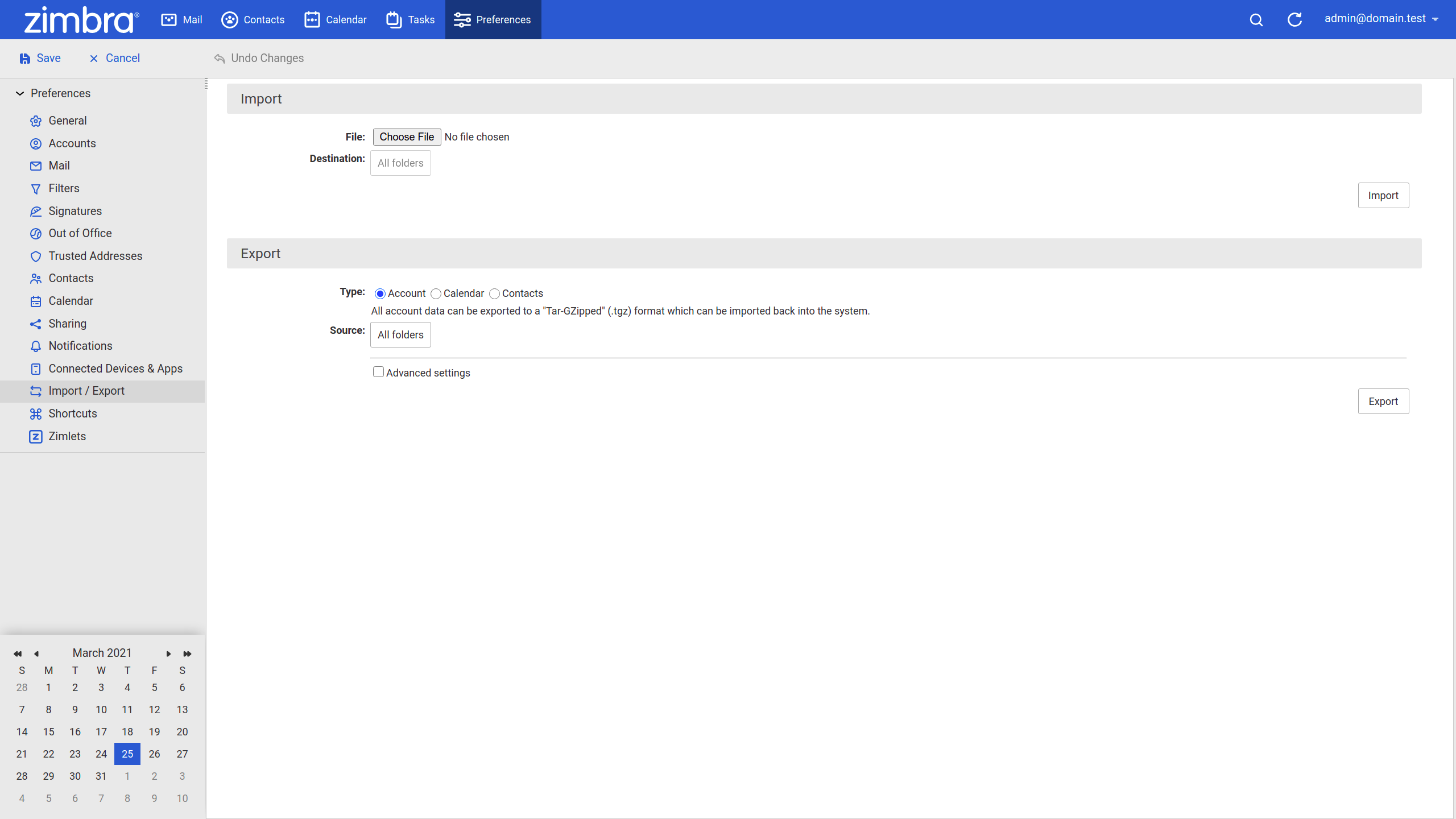
- Under the Export section select Account as the Type,
- In the Source field, select the folder you need to export,
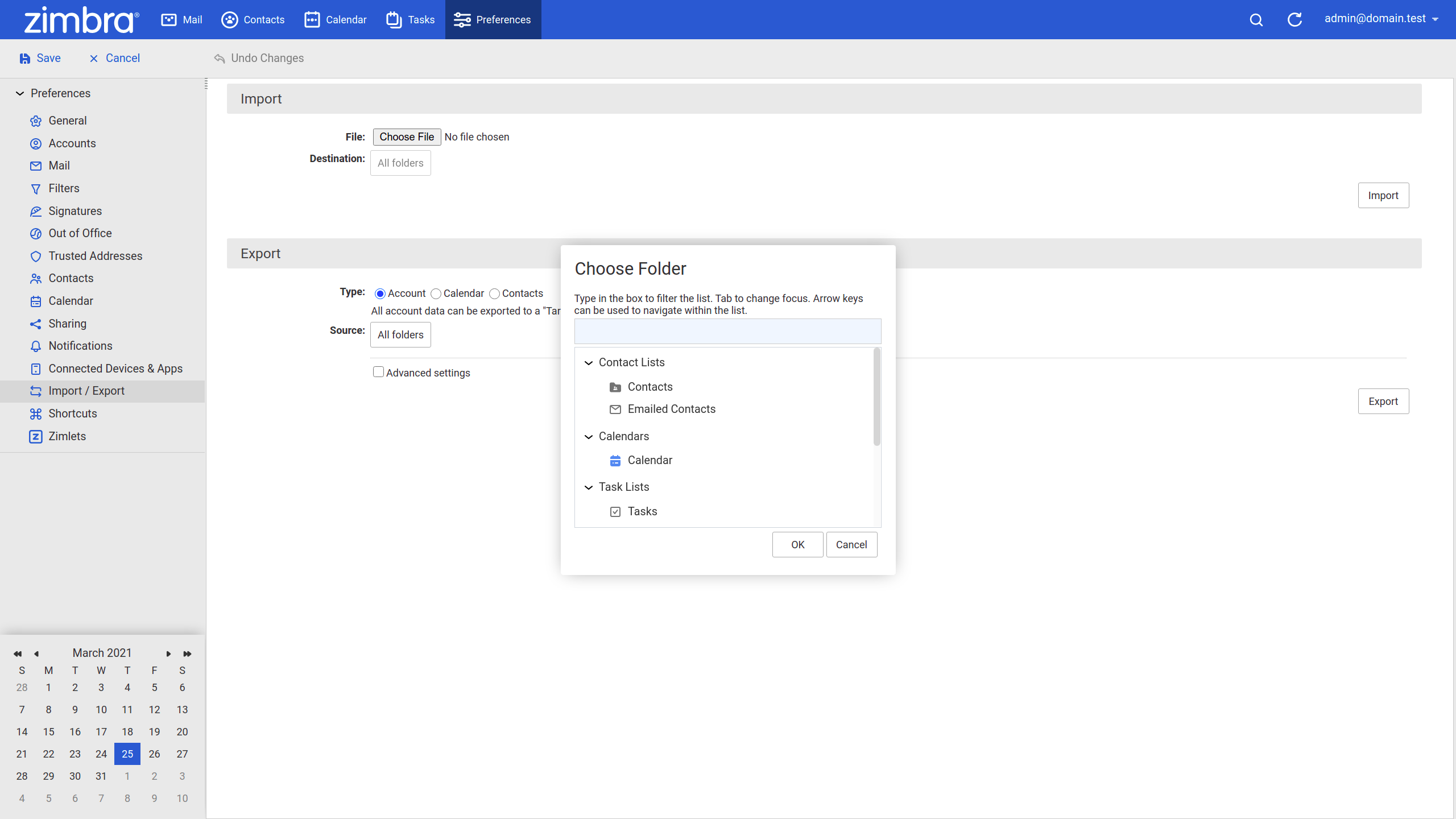
- Click the Export button to begin the export process.
After the process is complete the account data is saved as a .tgz file that can be found under the download path of your browser.
You can use the Advanced settings to export specific data
- Log in to your Zimbra web client,
- Go to the Preferences tab,
- Go to Import / Export from the left pane,
- In the Export section select Account as the Type,
- In the Source field, select the folder you need to export,
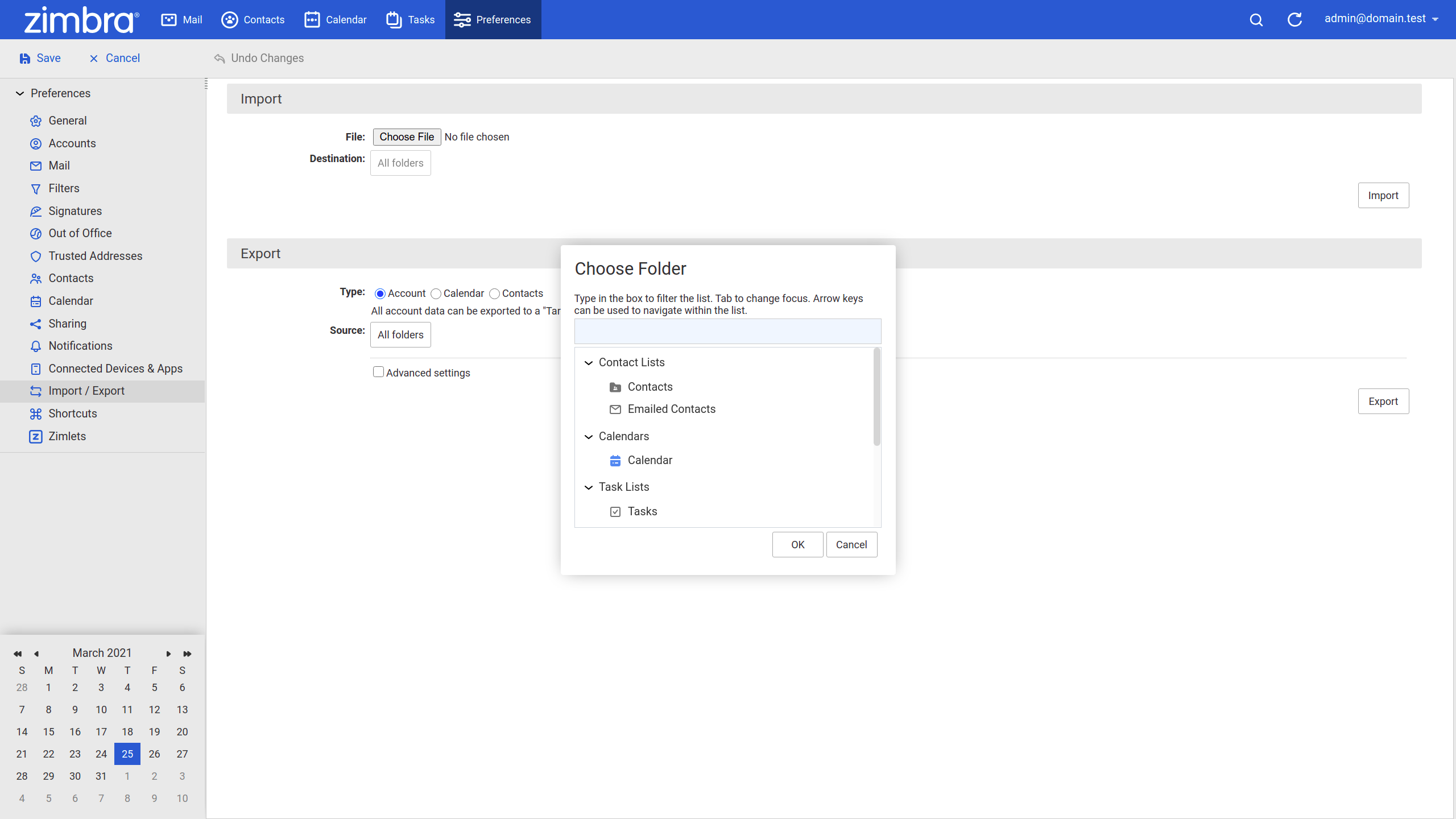
- Select Advanced settings to open further options,
- Optionally you can specify which application data to be exported in the Data types field,
- Optionally you can specify a time period in the Date field to export only the data in the time period,
- Optionally you can specify a query in the Search filter field to export only the data that matches the query, for example, has:attachment,
- Optionally you can check the Only export content files, exclude meta data in the Other field if you want to import the data into a non-Zimbra email account,
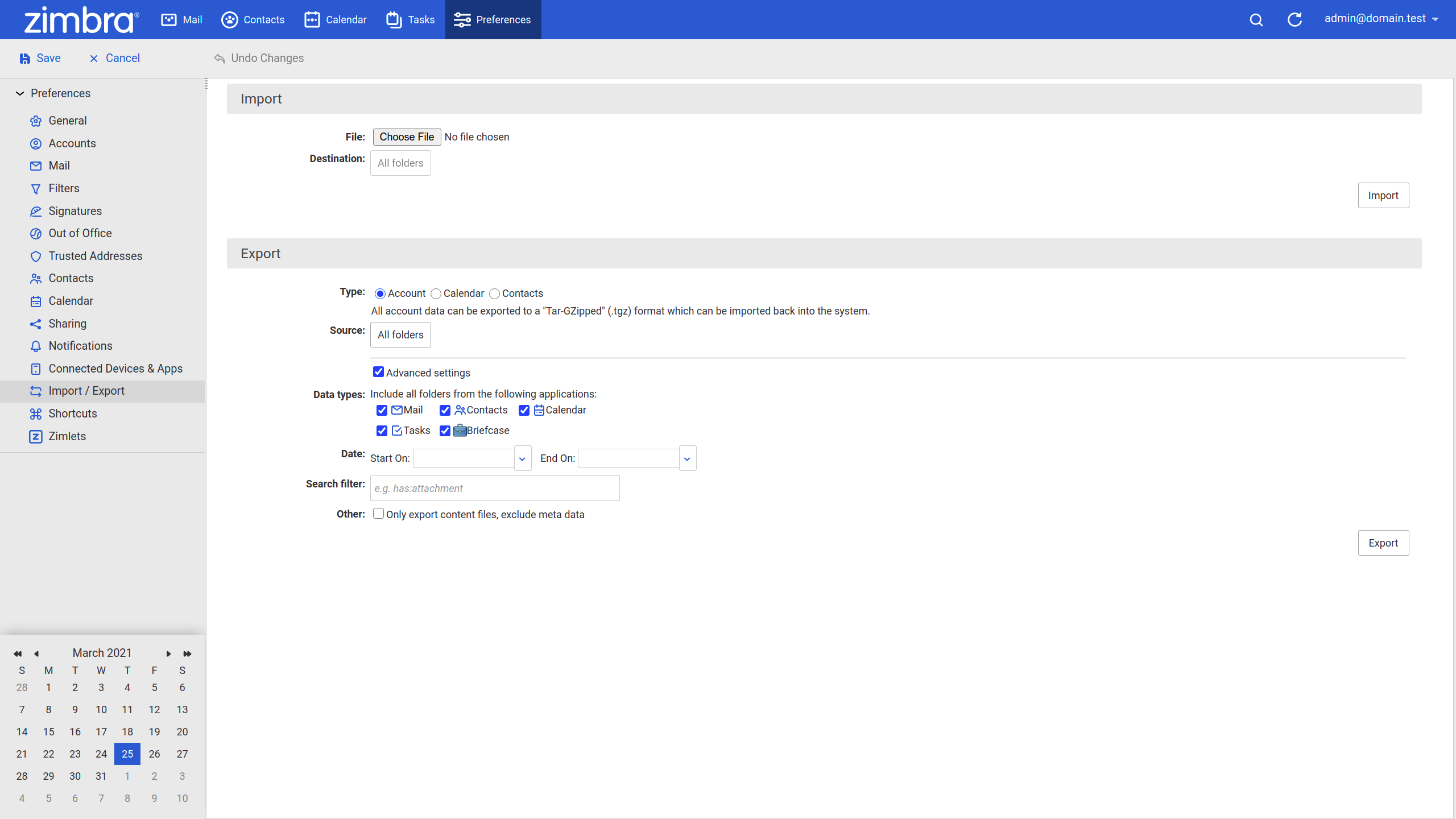
- Click the Export button to begin the export process.
After the process is complete the account data is saved as a .tgz file that can be found under the download path of your browser. Inside the .tgz file, emails are saved in .eml, contacts are saved in .vcf, and calendars are saved in .appt.meta file format.
Exporting Calendar Data in Zimbra
You can export your calendar in a .ics file through the Zimbra web client as follows,
- Log in to your Zimbra web client,
- Go to the Preferences tab,
- Go to Import / Export from the left pane,
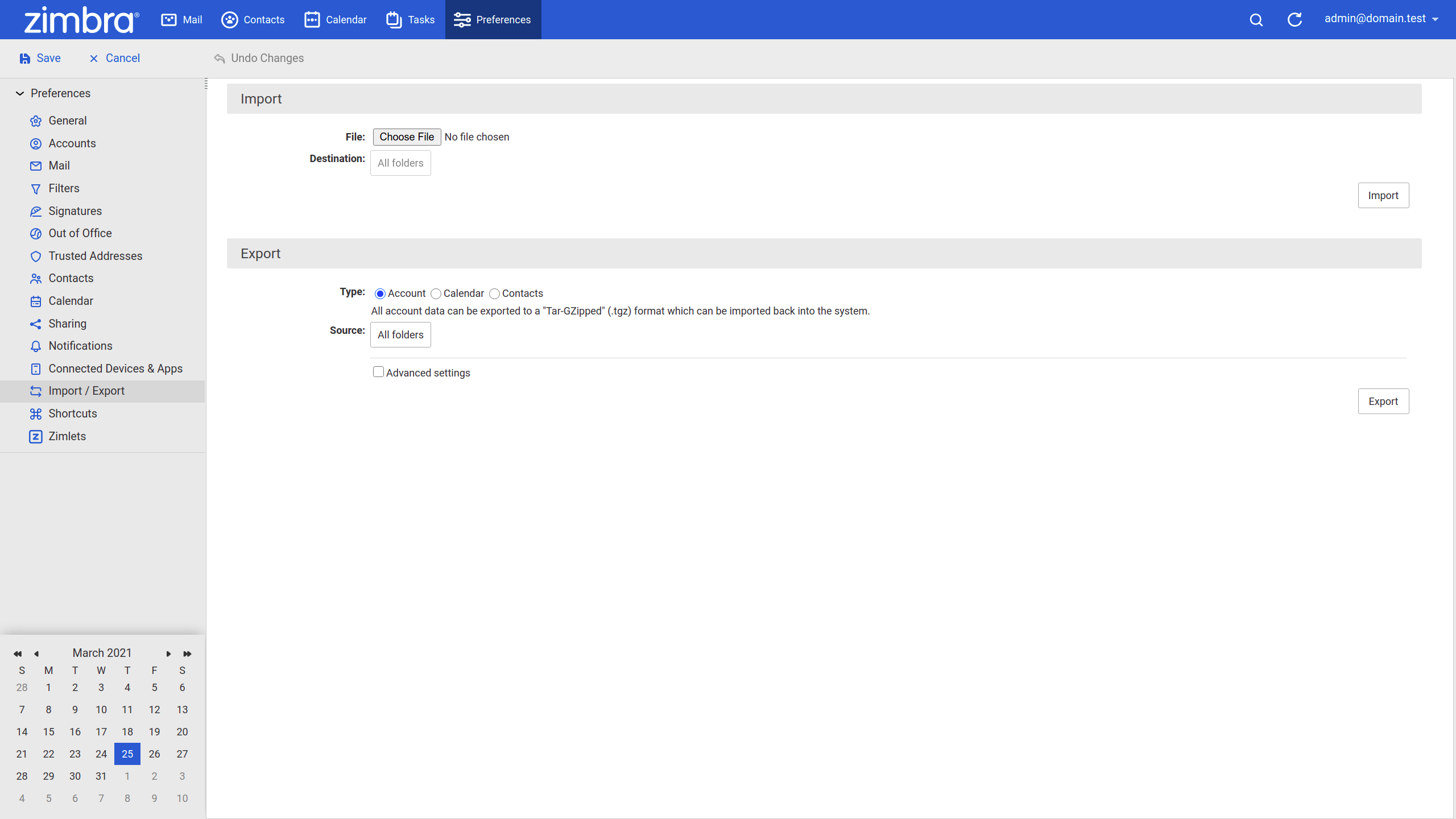
- Under the Export section select Calendar as the Type,
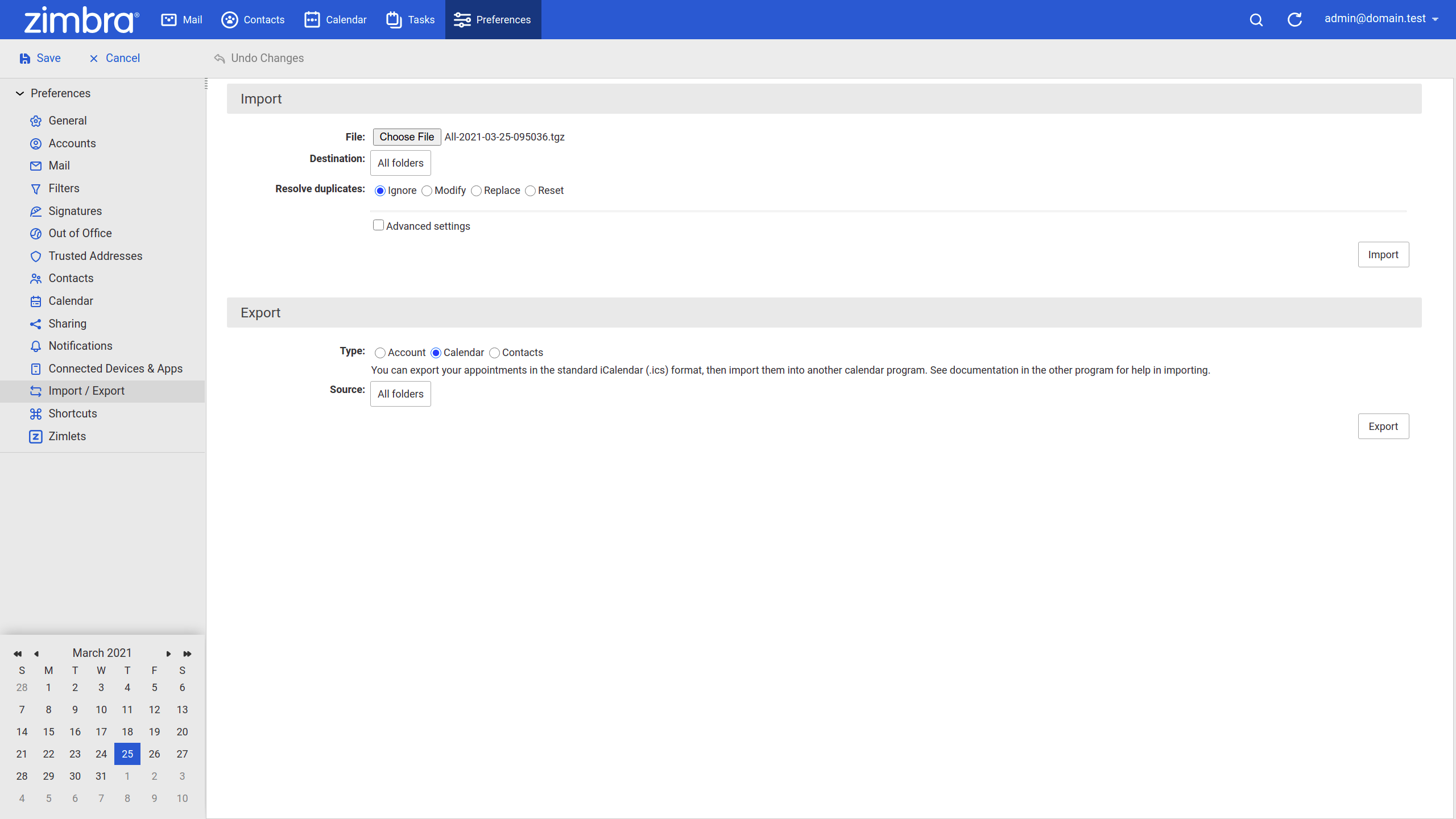
- In the Source field, select the folder you need to export,
- Click the Export button to begin the export process.
After the process is complete the calendar data is saved as a .ics file and can be imported into any calendar application that supports this file format.
Exporting Contact Data in Zimbra
You can export your contacts in a .csv file through the Zimbra web client as follows,
- Log in to your Zimbra web client,
- Go to the Preferences tab,
- Go to Import / Export from the left pane,
- Under the Export section select Calendar as the Type,
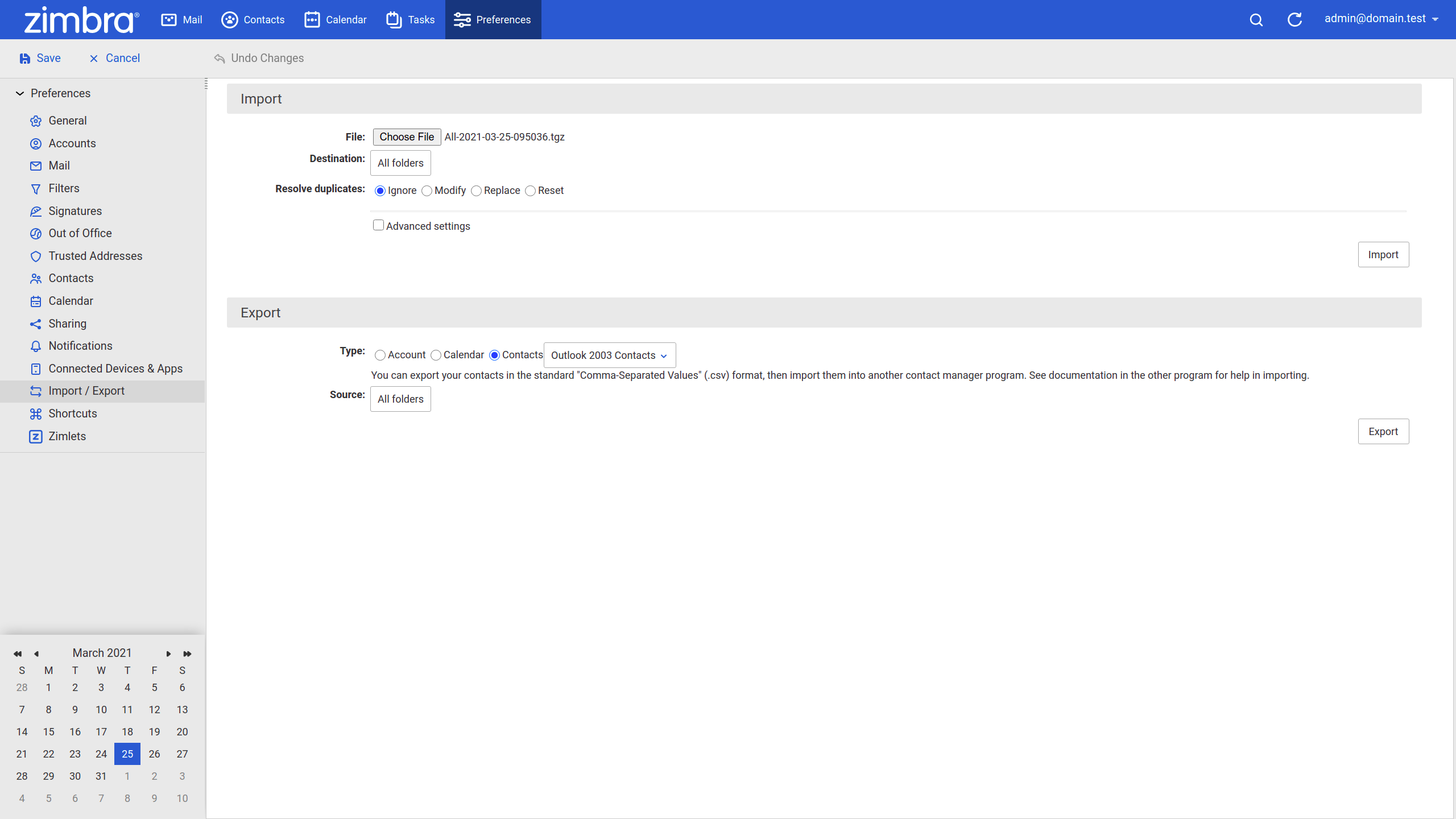
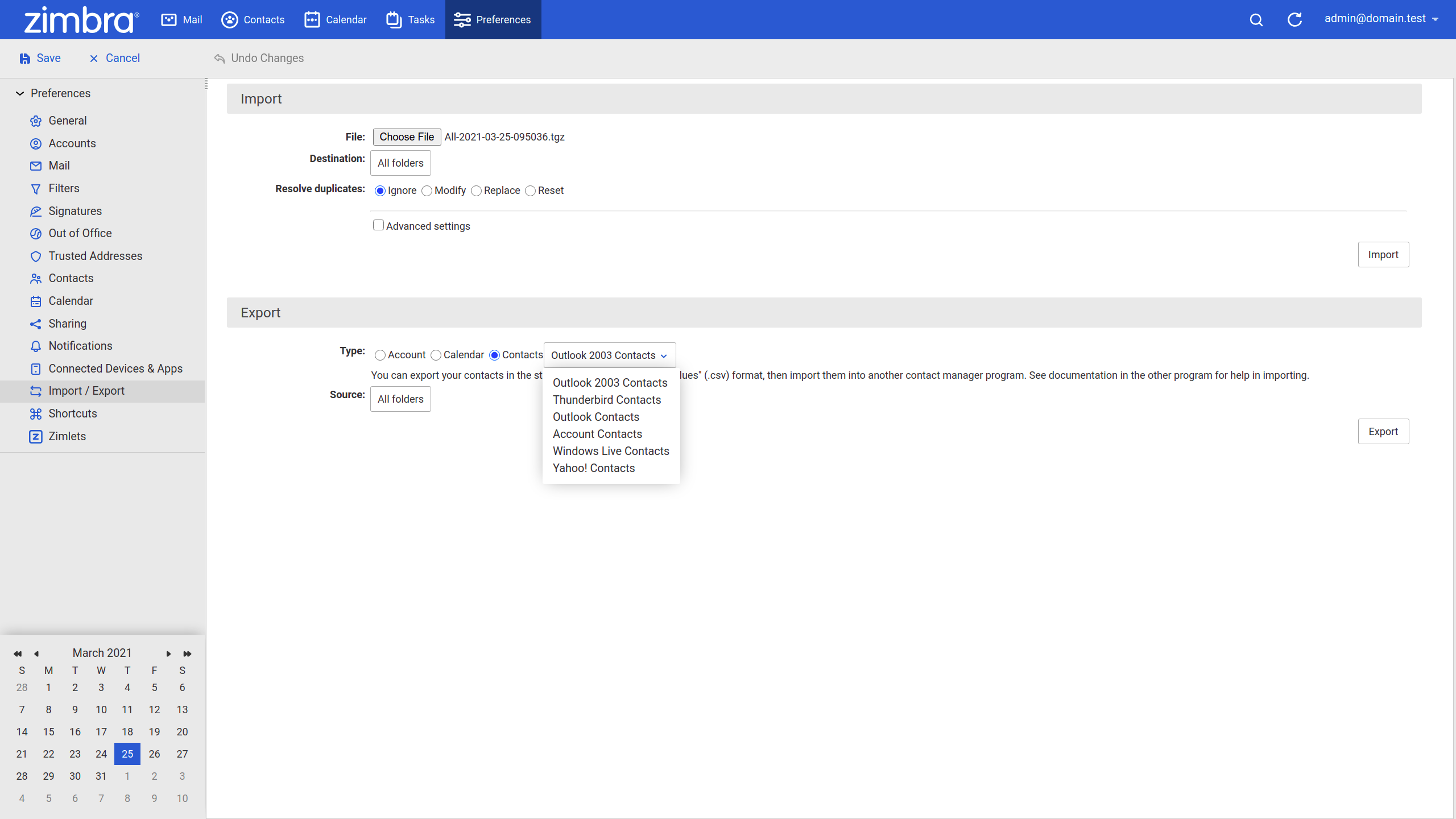
- From the drop-down menu, select Account Contacts to export contacts in its original format, or alternatively select other formats,
- Outlook 2003
- Thunderbird
- Outlook Contacts
- Windows Live Contacts
- Yahoo! Contacts
- In the Source field, select the folder you need to export,
- Click the Export button to begin the export process.
After the process is complete the contact data is saved as a .csv file organized in the format you specified.
Importing Data in Zimbra
Consider you have an account data .tgz file, a contacts .csv file, or a calendar .ics file that you need to import into your account. You can do it through the Zimbra web client as follows,
- Log in to your Zimbra web client,
- Go to the Preferences tab,
- Go to Import / Export from the left pane,
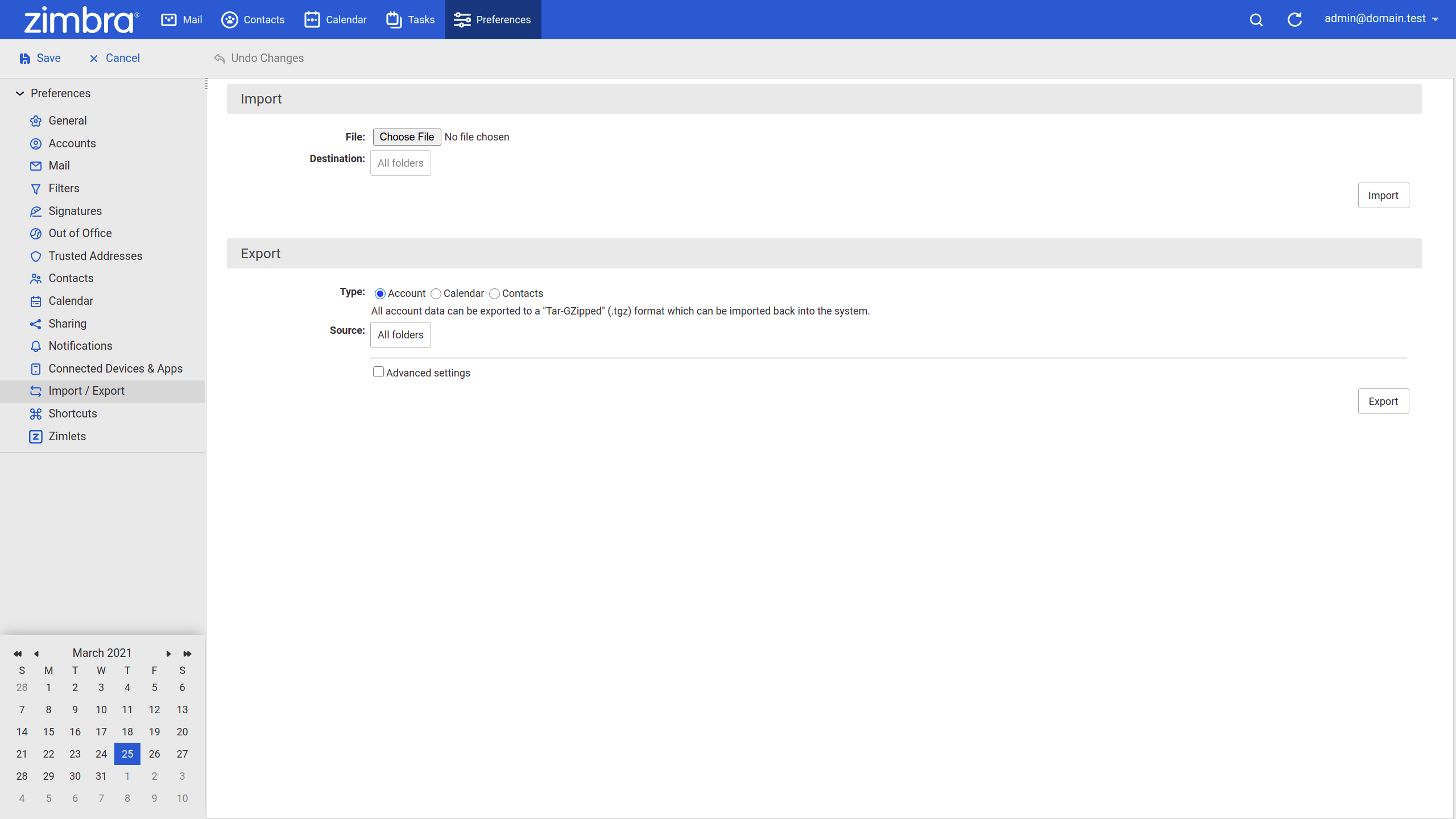
- Under the Import section click Choose File button,
- Browse your
.tgz,.csv, or.icsfile and click Open, - In the Destination field, select the destination folder based on the contents of the file you are importing,
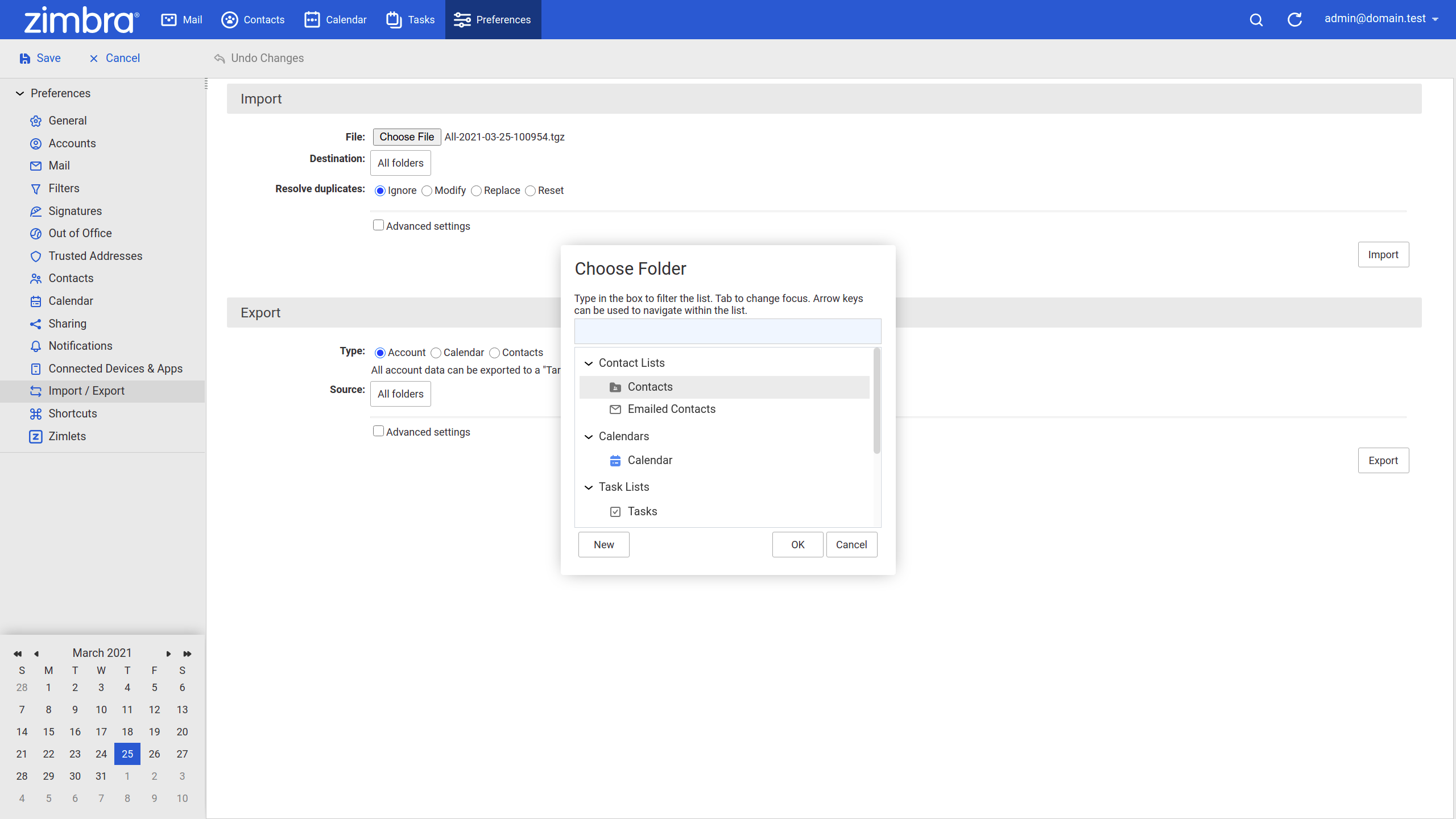
- In the Advanced settings, you can optionally specify which application data to be imported in the Data types field,
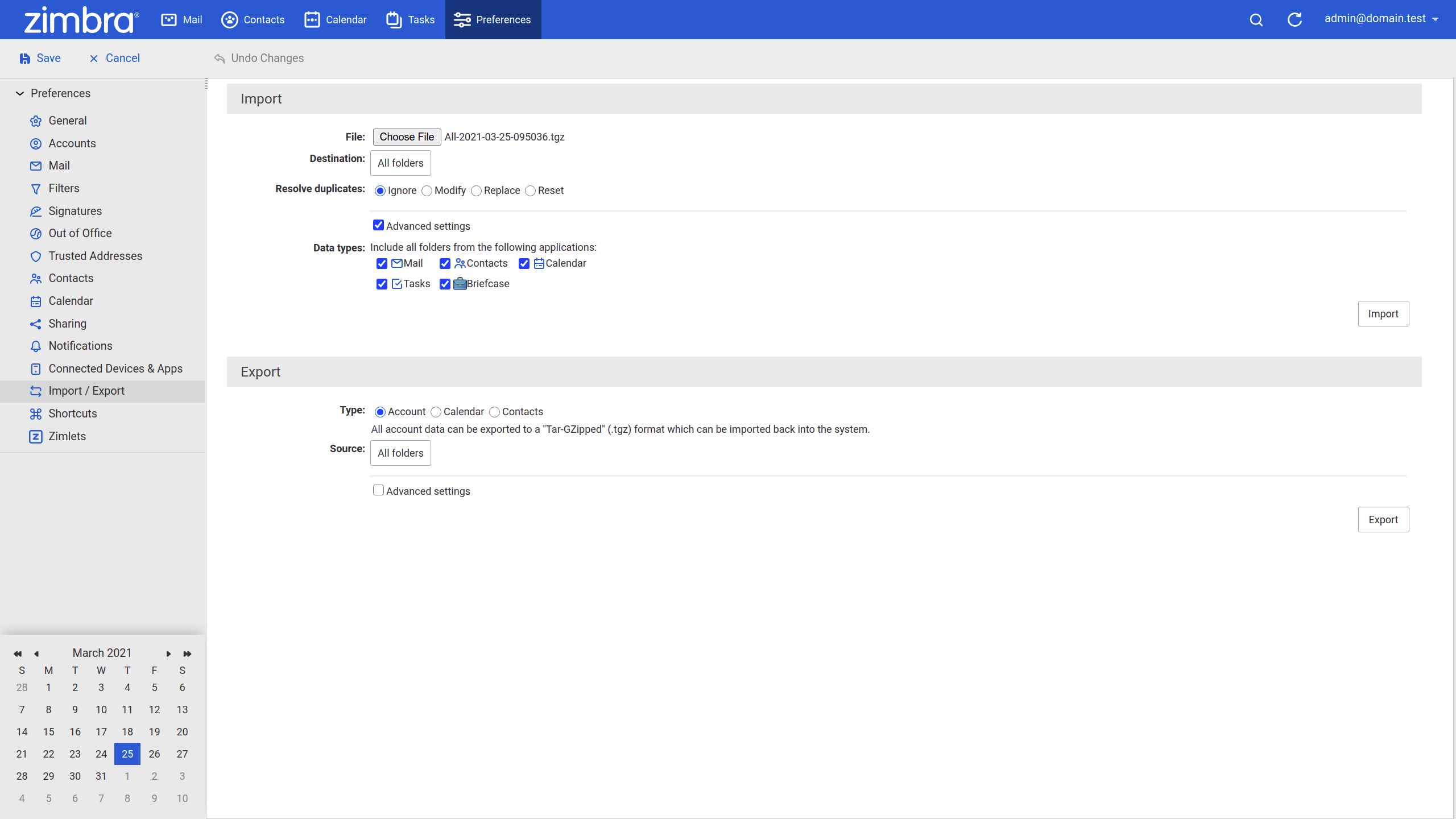
- Click the Import button to begin the import process.
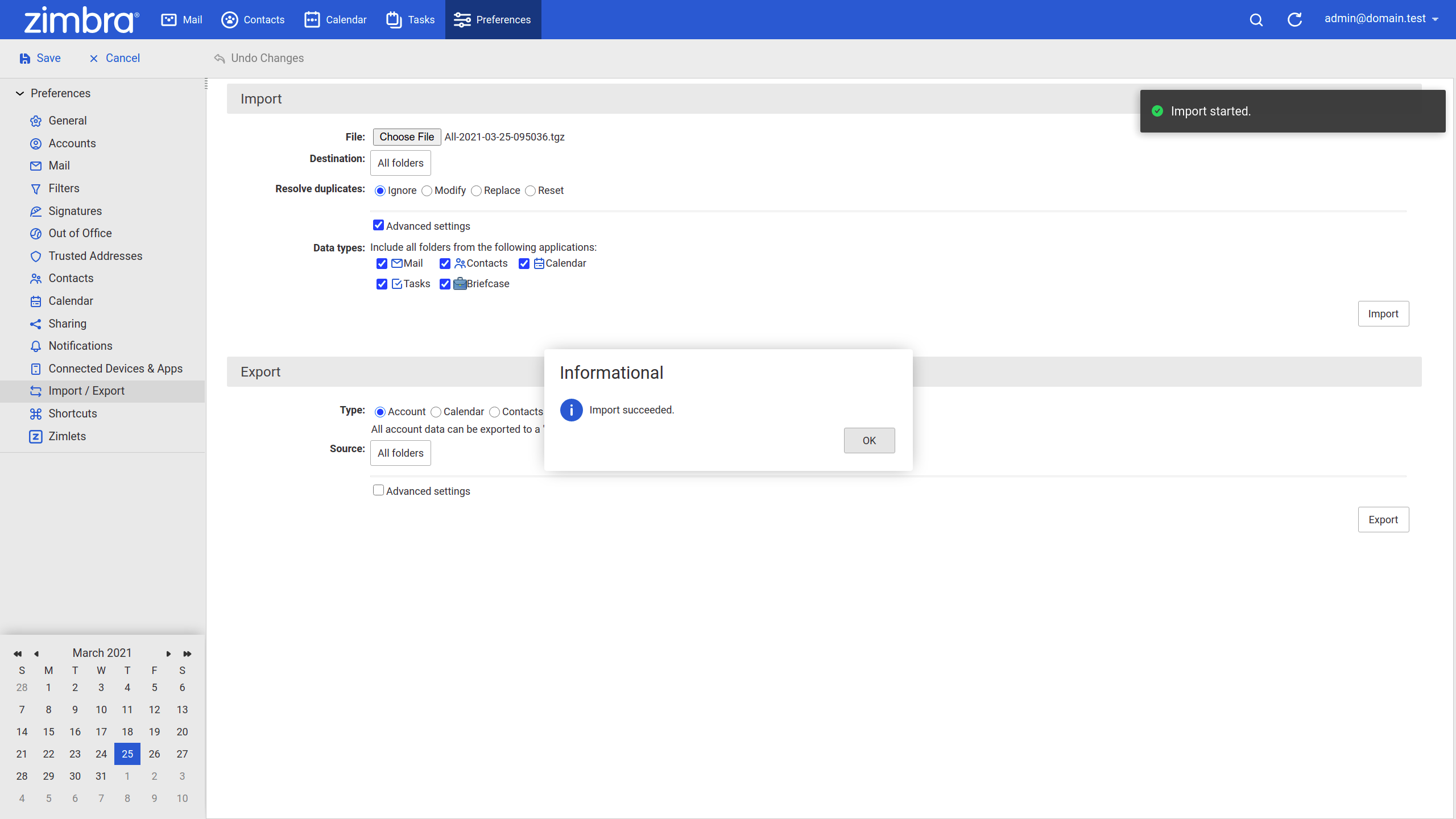
After the process is complete the imported folder can be found under the destination folder you specified.